
Pixel art converter
Image to Pixel Art — Small Grids, Few Colors
The real thing: your photo shrunk onto a small grid and repainted in a limited palette — with optional dithering for gradients and hard-edged PNG export at any scale. Free, no account, right in your browser.
Drop a photo here to turn it into pixel art
or click to choose a file
JPG · PNG · WEBP · up to 10 MB — converted on your device, never uploaded. Only convert images you own or have the right to use.
No image handy? Try a sample
How it works
Convert an image to pixel art in three steps
Every converter on this page does the same two things: it shrinks your photo onto a small grid, and it repaints each grid cell with the nearest color from the palette you chose. Shrink without the palette and you get a blocky photo — the limited palette is what turns blocks into pixel art.
Load a photo
Drop in a JPG, PNG or WebP, paste a screenshot, or start from a sample below. Close-up subjects on simple backgrounds convert most cleanly.
Set the grid and the colors
Slide the art width, choose a palette, and the preview repaints as you move. Most photos need two or three tries — not twenty settings.
Export the PNG
Save at 1× for editors and game engines, or scaled 4×–16× for sharing. The palette itself downloads as a file too.
Example
Real results from this converter
All three pixel-art sides come straight out of this converter with the settings shown — nothing was touched up afterwards. Our sources were cropped to their subjects first; tight cropping is the cheapest quality upgrade there is.
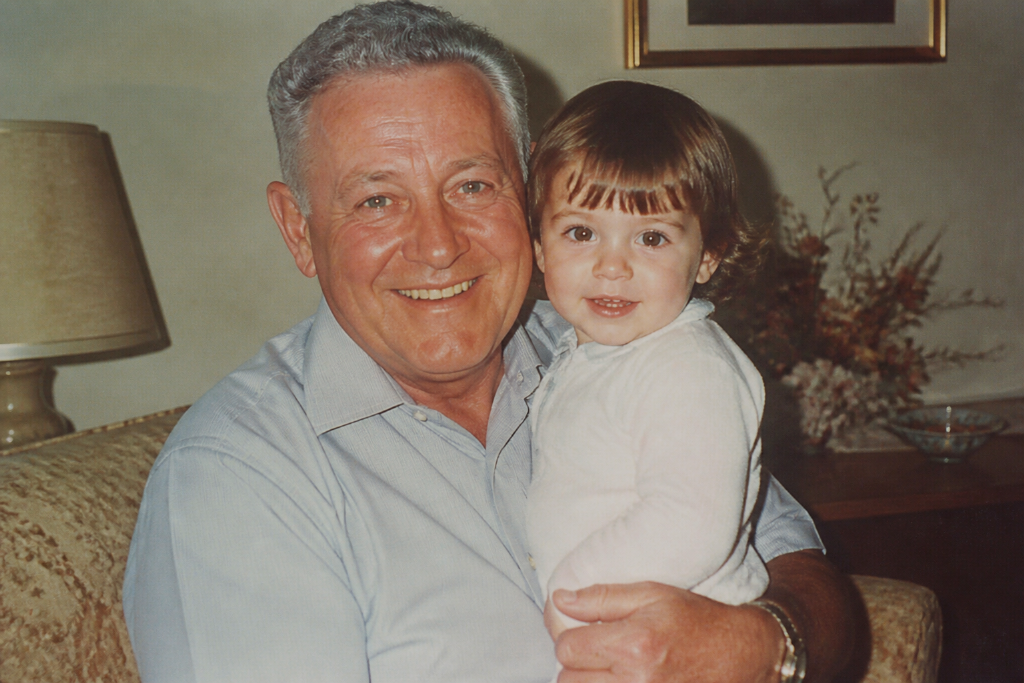 Before
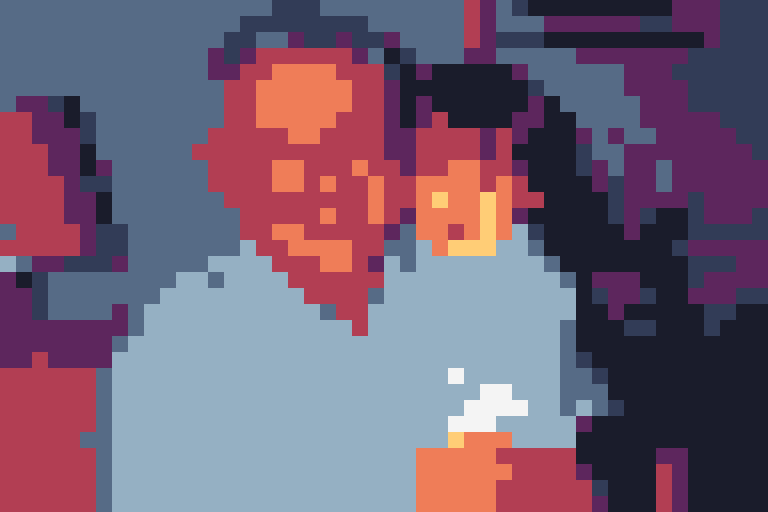 After
After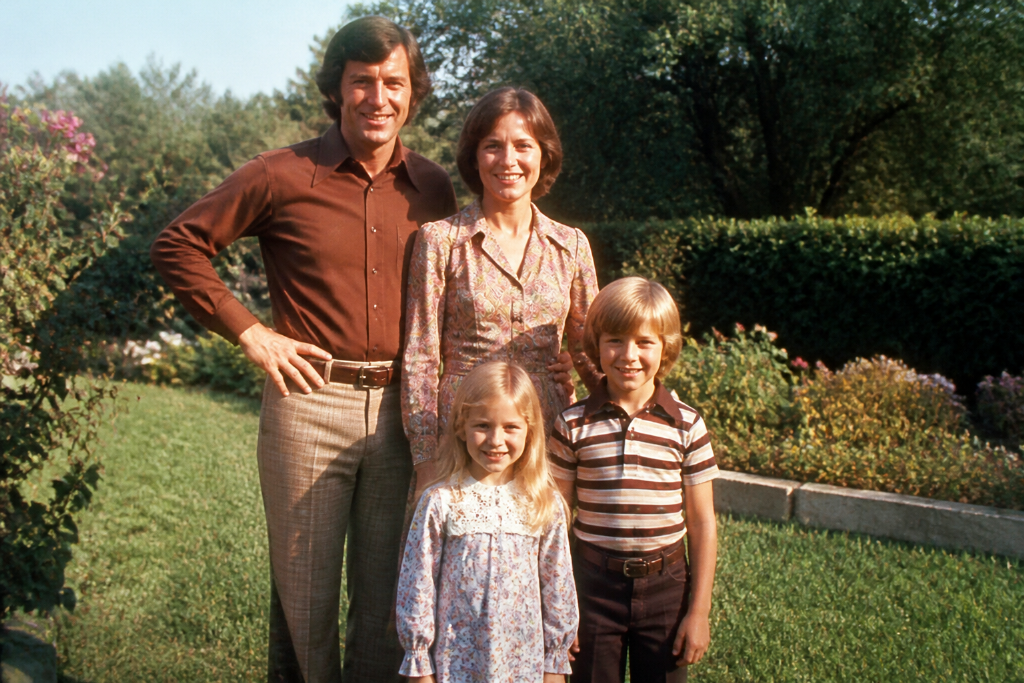 Before
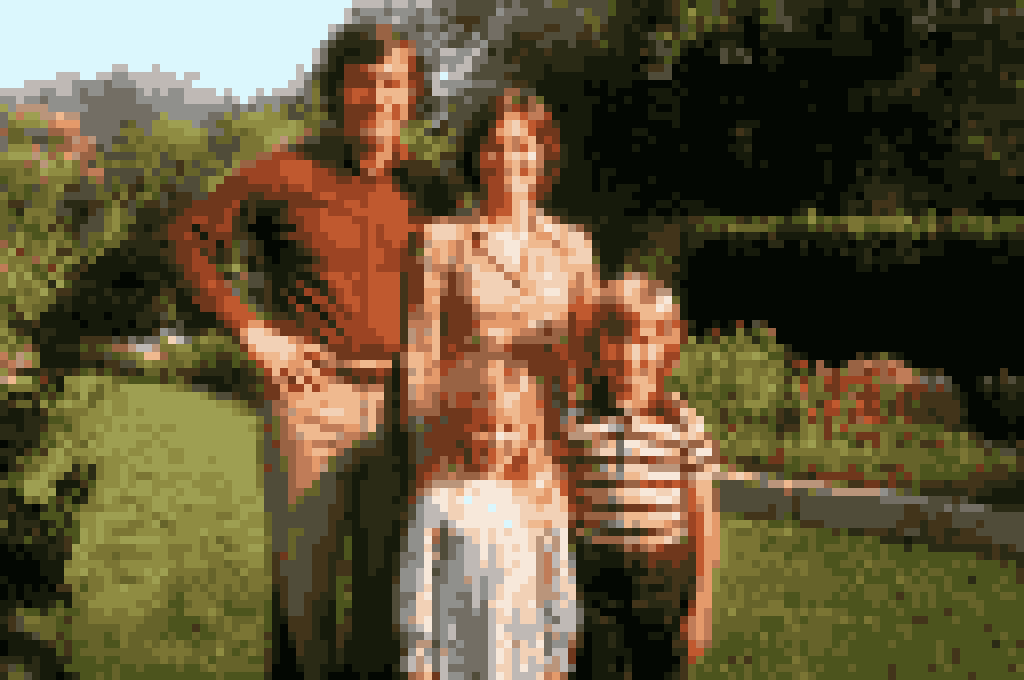 After
After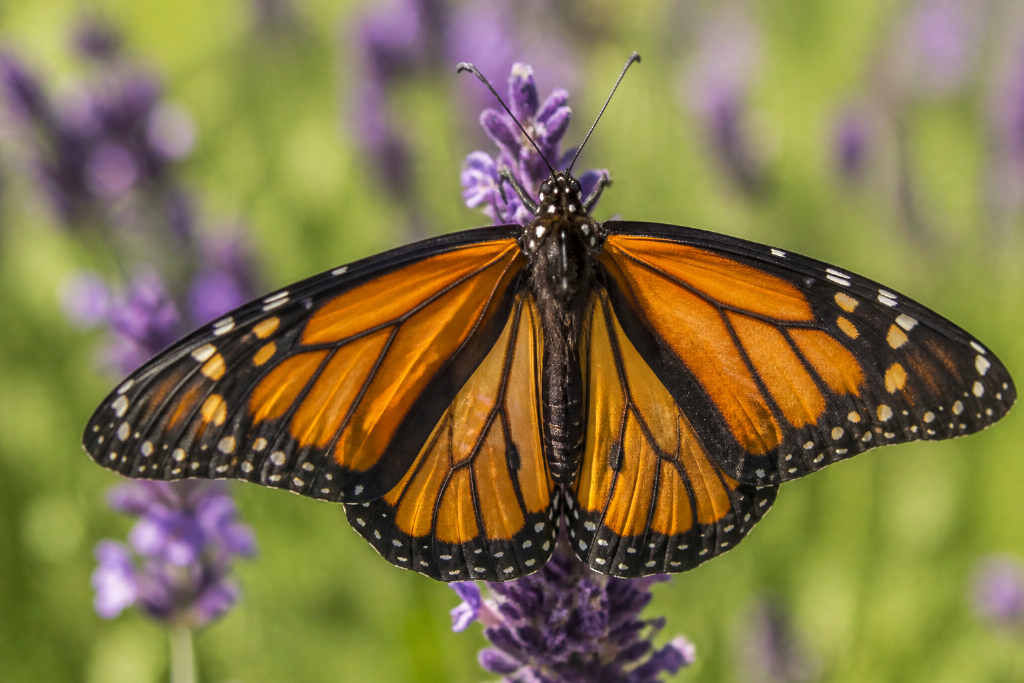 Before
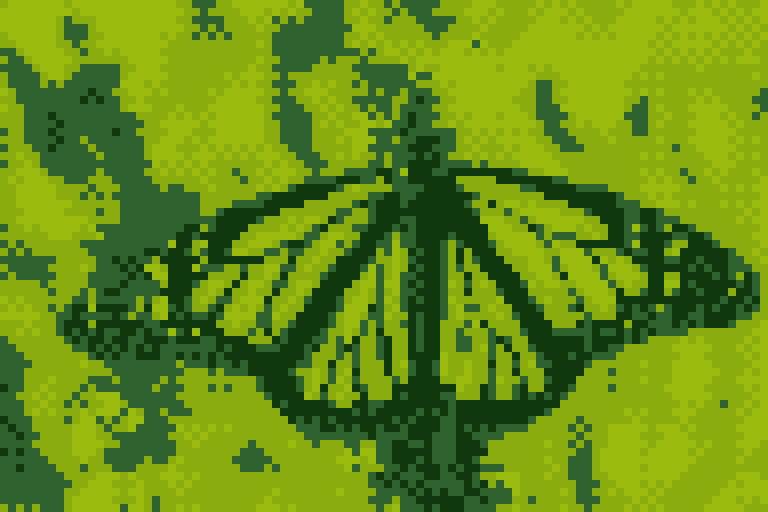 After
AfterPalettes
Choosing a palette
Size sets how coarse the art is; the palette sets what it will look like. Auto derives its colors from your photo, while each fixed palette bends the whole image toward a console’s — or an artist’s — look.
Auto (2–64 colors)
Samples your photo for its most representative colors — median cut first, then a few rounds of k-means so rare-but-important colors like eyes keep their place. It stays closest to the original. Around 8–16 colors the result reads unmistakably as pixel art; 32 or more starts looking photographic.
PICO-8
The 16 colors of the PICO-8 fantasy console — loud, saturated, a little candy-colored. Excellent for bold subjects and game mockups; not kind to delicate skin tones.
Game Boy
The handheld's four greens. Nostalgia in one click — add ordered dithering so skies and other smooth gradients break up into pattern instead of banding.
Sweetie 16
A 16-color community classic from Lospec: warm skins, cool blues, an even grey ramp. Probably the easiest fixed palette for people pictures.
Commodore 64 and CGA
Two home-computer time machines: the C64's muted sixteen, or CGA's black-cyan-magenta-white neon. Pick them for the period feel rather than for faithful color.
Grayscale and 1-bit
Eight greys for a monochrome-LCD mood, or true black-and-white. Photographs on 1-bit live or die by dithering — Floyd–Steinberg around 60% usually works.
Custom
Paste hex codes directly, or drop in the contents of a Lospec .hex or a GIMP/Aseprite .gpl file — handy when the output has to match a game, a brand, or an existing tileset.
Settings guide
Size, colors and dithering
Three controls carry most of the weight. How to think about each:
Size: the width of the art itself
The download can be any size; this slider sets the art. Icons and emotes live around 32 px, avatars and sprites at 48–64, scenes and posters from 96 up. Small grids stylize and forgive busy photos; large grids hold more detail but read more like a resized photo.
Colors: fewer than you think
Retro sprites worked with 4–16 colors, and that range still holds up. If an Auto result looks muddy, drop to 8–12 colors and raise saturation — a tight palette is what keeps shapes legible on a small grid.
Dithering: none, Floyd–Steinberg or ordered
Dithering interleaves two palette colors so the eye reads a third. Keep it off for flat, clean sprites. Floyd–Steinberg scatters the error like film grain — good for smooth photo gradients. Ordered dithering lays down the regular cross-hatch you remember from 8-bit games.
Export: true size or scaled
At 1× the download has exactly as many pixels as the art — the format Aseprite, tilemaps and engines expect. 4×–16× blow each art pixel up into a crisp square, which survives social platforms far better than letting them blur a tiny image.
Contrast sells pixel art. Nudging contrast up 10–20 and saturation up 15–30 before quantizing does more than any cleanup afterwards — the palette is sampled from the adjusted pixels, so those are the colors you get. That is why both sliders sit right next to the size control.
Use cases
What people make with it
Game sprites and mockups
Reference photos and renders become jam-game sprites — export at 1× with the .gpl and your editor's swatches match the sheet exactly. Manual cleanup in Aseprite from there.
Avatars and profile pictures
One face at 48–64 px in a dozen colors makes an avatar nobody mistakes for anyone else's — export at 8× so Discord, Twitch or GitHub don't blur it.
Posters and prints
Scenes and landscapes at 96–128 px, exported 16×, read as deliberate retro art prints. C64, or 1-bit with dithering, carries the aesthetic hardest.
What to expect
A converter, not an artist
What it does well
Faithful, repeatable restyling: every output pixel is derived from your photo by fixed rules, and the same settings always reproduce the same art. Cropped subjects, clean backgrounds and a boost of contrast give the best results.
What it cannot do
It only reduces — fewer pixels, fewer colors — so tiny text stays unreadable and nothing is invented. It is also not the privacy tool: mosaic censoring of faces and plates is the pixelate image job, and reconstructing detail into small or blocky images is the unpixelate job.
Building pixel art by hand is a craft — a converter gives you the grid and the palette, and tools like Aseprite take it the rest of the way. And if your photo is blurry rather than sharp, conversion will faithfully pixel-art the blur; the unblur page is the fix for that first.
FAQ
Pixel art conversion — frequently asked questions
Is this converter AI?
No, and that is the point. Conversion is deterministic image processing — downscale to a grid, snap to a palette, optional dithering — so the same photo with the same settings always produces the exact same output. It transforms your photo; it does not invent anything.
Is it free? Do I need an account?
It is completely free and needs no account — the conversion runs entirely in your browser tab. This is different from our AI reconstruction tools, which sign you in so credits can be attached to your work.
Is my image uploaded to a server?
Never. The photo is read into a canvas in your own browser and every conversion happens on your device. You can even disconnect from the internet after loading the page and it keeps working.
What grid size should I use?
32 px suits icons and emotes, 48–64 px suits avatars and character sprites, and 96–128 px suits scenes and posters. Smaller grids look more stylized and forgive busy photos; larger grids keep detail but drift back toward looking like a small photo.
Which palette should I pick?
Auto builds a palette from your photo and stays faithful to it. The fixed palettes (PICO-8, Game Boy, Sweetie 16, C64, CGA) push your image into a known style. Fewer colors read more clearly — classic sprites used 4 to 16 colors — and dithering helps photos with gradients survive a tiny palette.
How is this different from the mosaic pixelate tool?
They are opposite jobs. The pixelate image tool hides things: draw boxes over faces, plates or details to censor them. This page restyles the whole image into limited-palette pixel art. If your goal is privacy, use the mosaic tool; if your goal is the look, use this one.
Can I use the result in Aseprite or a game engine?
Yes — export at 1× so the download has exactly as many pixels as the art itself, which is what sprite editors, tilemaps and engines expect, and save the palette as .gpl or .hex so your editor shows the same swatches. The output is a plain PNG of your own photo, so commercial use is yours to make.
Can it add detail or fix a low-resolution photo?
No — conversion only reduces: fewer pixels, fewer colors. It cannot reconstruct anything, and tiny text in the photo stays unreadable. If you want the opposite job — estimating sharp detail back into a small or blocky image — that is our main AI tool.
More questions? See the frequently asked questions page.
More pixel tools
Related jobs, one toolbox
Pixelate image
The privacy job: draw mosaic boxes over faces, plates and details right in the browser. Free, no upload — same as this page.
Unpixelate image (AI)
The reverse direction: AI reconstruction estimates sharp, high-resolution detail back into small or blocky images.
Upscale image
A sharp photo that is simply too small for print — the focused page for enlarging with AI, up to 8MP.
Got a photo worth 8-bitting?
Free, no account, converted on your own device — try the sample if you don’t have one handy.
Convert my image