
Image upscaling
Upscale an Image Online — Sharp at Any Size
Photos and screenshots often arrive small — a thumbnail, a compressed download, a crop you wish were bigger. AI reconstruction enlarges them up to 8MP, estimating the edges a plain stretch leaves soft.
Drop a small image here
or click to choose a file
JPG · PNG · WEBP · up to 10 MB — only upload images you own or have the right to use.
Sign in to process your image
2 free credits on sign-up · no credit card required
You are out of credits
Choose a plan or a credit pack to keep processing. Failed jobs do not use credits.
No image handy? Try a sample
Diagnosis
Too small, pixelated or blurry?
Three different problems get called “low quality”, and they need different fixes. One zoom-in tells you which one you have:
Visible squares
Zoom in and the image breaks into a regular grid of blocks. That is pixelation — usually a small file enlarged long ago — and it has its own page: fix a pixelated image.
Soft, smeared edges
Edges look out-of-focus at any size, with no grid anywhere. That is blur — motion, missed focus or compression — and the unblur image page is the focused fix.
Sharp, just small
The picture reads fine on screen, but zooming, printing or placing it in a layout falls apart. Nothing is wrong with the image — there are simply not enough pixels. That is the job on this page.
Example
Real enlargements from this tool
Both right-hand images are the production pipeline’s real output for those exact small inputs — not the untouched originals. The left side is the small file stretched to display size, which is all a plain resample ever gets you.
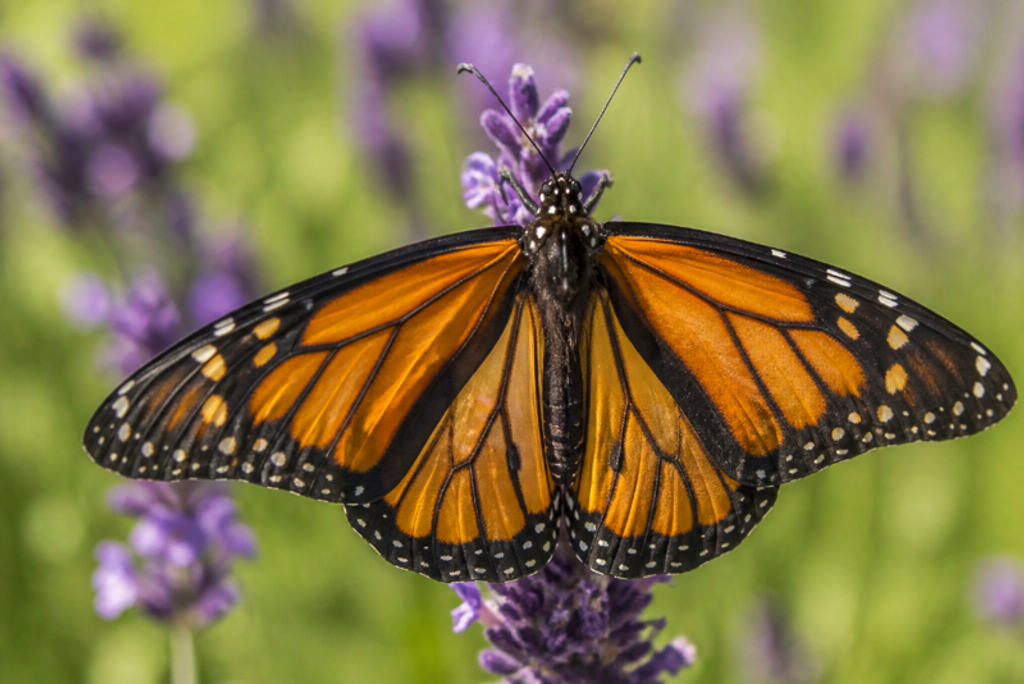 Before
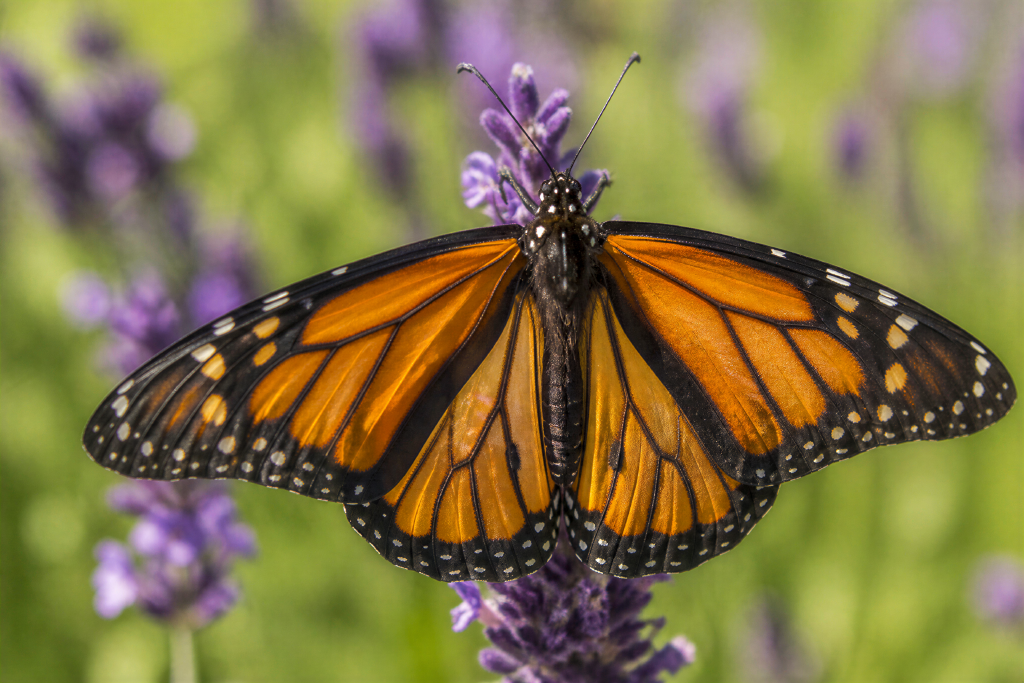 After
After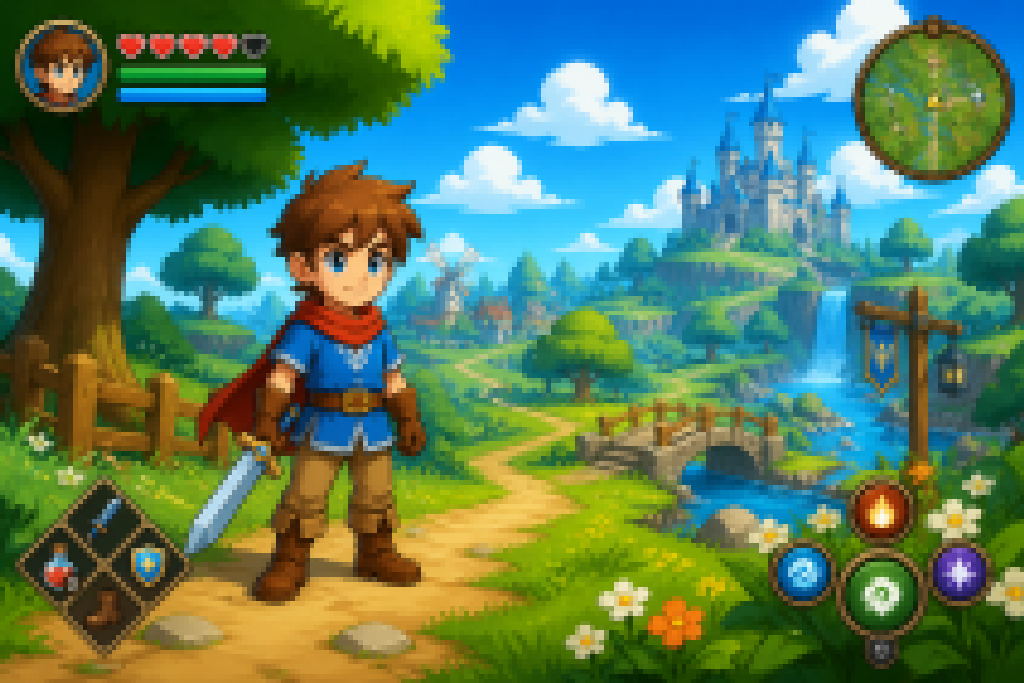 Before
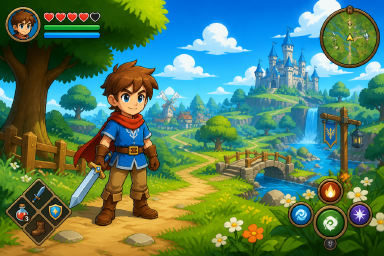 After
AfterHow it works
How to upscale a photo
Upload the small file
Sign in with Google and drop a JPG, PNG or WEBP up to 10 MB. A small original is exactly the right input — the reconstruction is what adds the resolution.
Pick Standard or HD
Standard delivers up to 2 megapixels; HD up to 8, with the strongest detail recovery. Standard costs 2 credits, HD 8 — failed jobs are refunded automatically.
Compare and download
Drag the before/after slider; if the enlargement reads the way you need, download the result at full output size — no watermark.
Why reconstruction
Why not just stretch it?
Stretching a photo — in an editor or with any resample — creates new pixels by averaging the old ones. Averaging cannot know what the edge was, so edges stay soft no matter how large the file becomes. Reconstruction works the other way round: the model reads the structure that survives in the small file and estimates the sharp edges and texture at the larger size. The output is an estimate — but a sharp one, which is what enlargement is for.
For the manual workflow and its trade-offs, see our Photoshop comparison; for the desktop professional route, the Topaz Photo AI comparison covers the best-known upscaler.
Which mode
Standard or HD for enlarging?
Standard (2 credits, up to 2MP) covers screens: social posts, messaging, slide decks, avatars. HD (8 credits, up to 8MP) is for print and framing, and anywhere faces matter — it carries the strongest fine-detail recovery, and every HD result includes a free, optional face-polish pass. Failed jobs are refunded automatically either way. The numbers are on the pricing page.
What to expect
What enlargement can and cannot do
Works well
Small screenshots, compressed downloads and crops — files whose structure is intact but whose pixel count is not. AI-generated images suit it well too: they are often exported small and carry clean structure to estimate from.
Out of reach
Content that genuinely is not in the pixels stays missing — a face turned away, text too far gone to read. And past roughly eight times enlargement the model would be inventing detail rather than reconstructing it, so the tool caps the factor there on purpose.
Every result carries the same disclaimer: output is a plausible estimate, not a factual recovery of the original. If the file is blurred rather than small, the unblur page is the fix; if the background is blocky, start at fix a pixelated image; for the method behind the model, read how to unpixelate an image.
FAQ
Upscaling images — frequently asked questions
Can I upscale an image without losing quality?
Every enlargement is an estimate. A plain stretch invents pixels by averaging the old ones, which leaves edges soft; reconstruction estimates the edges and texture instead, so the result reads sharp at the larger size. What it cannot do is return detail that was never captured — the output is a plausible reconstruction, not the original.
Is it free?
Sign-up includes 2 free credits — enough for one full Standard run — and no credit card is required. After that, Standard output costs 2 credits per image and HD 8; failed jobs are refunded automatically.
How big can I go?
Standard delivers up to 2 megapixels and HD up to 8. Past roughly eight times the original, enlargement stops being reconstruction and starts being invention, so the tool caps the factor there on purpose. Sources under 256 pixels on the short side are padded to meet the engine's floor, and very tiny crops see more varied results.
Is upscaling the same as unblurring?
No, and the difference decides which page you want. Blur is soft edges at any size — motion, missed focus, compression; the unblur image page is the fix. Upscaling is a pixel-count problem: the photo is sharp but too small for what you need it for. Same engine, different job.
What about pixelated images?
A regular grid of visible squares means pixelation — usually a small file that was enlarged long ago. That has its own page: fix a pixelated image. This page is for files that are still clean, just small.
Can I upscale AI-generated images?
Yes. AI-generated images are often exported at small sizes, and their clean, well-defined structure gives the reconstruction plenty to estimate from. The same honesty applies: the enlarged output is an estimate, and small text or logos inside the image should be checked at full size.
Will faces hold up when enlarged?
HD carries the strongest fine-detail recovery on faces, and every HD result includes a free, optional face-polish pass that refines them further. As with any estimate, check the result against the original before you print or publish it.
What happens to my uploads?
Uploaded images and results are kept for a maximum of 14 days and then automatically deleted. Images are sent to our AI provider for processing and are never used to train models. See the Privacy Policy for details.
More questions? See the frequently asked questions page.
More pixel tools
Related jobs, one toolbox
Unpixelate image (AI)
The main tool: full photos, faces, textures and scenery, reconstructed in the browser — no install, no watermark.
Restore old photos
Old prints scan small and soft — the focused page for worn family photos, with an honest word on what restoration cannot do.
Unblur image
Sharp file, blurry photo? That is blur, not size — out-of-focus and compression blur respond strongly to the same reconstruction.
Got a photo too small to use?
Start free — 2 credits on sign-up, no credit card required.
Upscale your image